SUPPORT
Support starts here.
TICKETS — NEW OR EXISTING
Client Portal ↗CALL
860-838-3804IF WE ASK YOU TO START A REMOTE SESSION
Run the Splashtop SOS download below and read us the 9-digit code. You'll only need this when you're already talking to us.
Grabs the right download for your device automatically.
Didn't download? Splashtop page ↗Stuck? Setup steps ↓
Did someone call you claiming to be from Iron Saber? Hang up and call us back at 860-838-3804, the number on this site, never one they gave you. Real Iron Saber sessions happen on calls you placed or tickets you opened.
GOOD TO KNOW
You stay in control.
✓We see your screen and can drive. We move your mouse and keyboard, and can transfer files if the fix needs it — while you watch every step, live.
✓Close the app, and access ends. Instantly.
✓Nothing installs permanently. Delete the download when we're done.
This page covers the remote tool. Tickets and everything else start in the portal, up top.
WINDOWS SETUP
Windows? Two clicks and you're in.
01Double-click SplashtopSOS, it's in the top-right of your browser or in your Downloads folder.
02Windows will ask “Do you want to allow this app to make changes to your device?” Click Yes. That prompt is expected, and the publisher will say Splashtop Inc.
03Read us the 9-digit code that appears.
MAC SETUP
On a Mac? A few permissions first.
01Open SplashtopSOS from your Downloads folder.
02A Splashtop helper window appears. Click Allow next to each permission, each one opens System Settings for you.
03Turn on Splashtop SOS under Accessibility and Screen & System Audio Recording, those two are required. Add Microphone and Full Disk Access if we'll need sound or file transfer.
04Quit and reopen the app, then read us the 9-digit code.
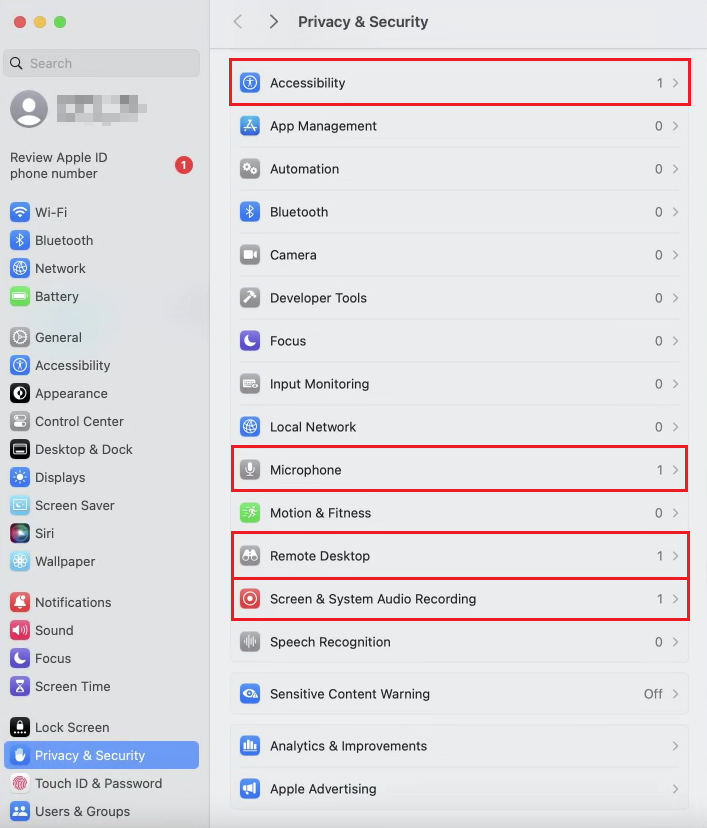
PRIVACY & SECURITY — THE PERMISSIONS LIST
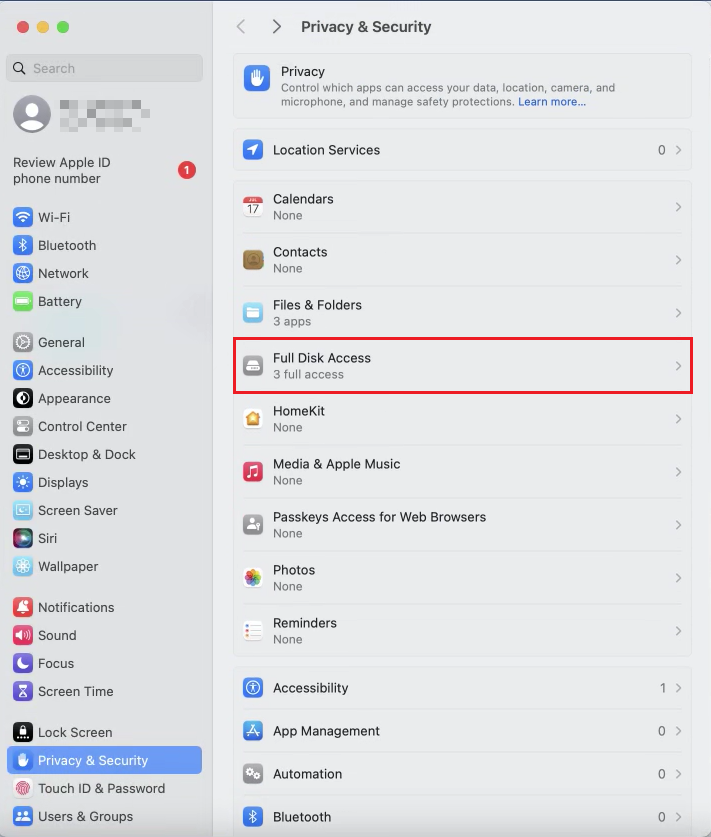
FULL DISK ACCESS — FOR FILE TRANSFER
PHONE OR TABLET?
iPhone, iPad, or Android? Those work too.
01Install the free Splashtop SOS app — the gold button at the top of this page takes your phone straight to it, or search "Splashtop SOS" in the App Store or Google Play.
02Open it and read us the 9-digit code, then follow the app's prompts to start sharing your screen.
03We watch your screen live and walk you through the fix, step by step.
One difference from a computer: on iPhone and iPad we can see your screen but can't take control (that's Apple's rule for everyone, not a Splashtop limit), so you do the tapping while we guide you. Many newer Android phones and tablets do let us drive once you approve an on-screen permission.
IRON SABER
MANAGED IT & CYBERSECURITY
542 Hopmeadow St, Ste 142 · Simsbury, CT 06070
© 2026 Iron Saber
PROTECTING GREATER HARTFORD